Sometimes when we create a bootable drive or burn a system image onto an SD card, the displayed drive letter space on the computer will be significantly less than the actual space of the SD card itself. In this case, you can refer to this blog to recover the SD card space.
(1) Run cmd as an administrator
(2) Input DISKPART command
In the opened command prompt window, enter DISKPART and press Enter to display the computer name and the DISKPART>command line.
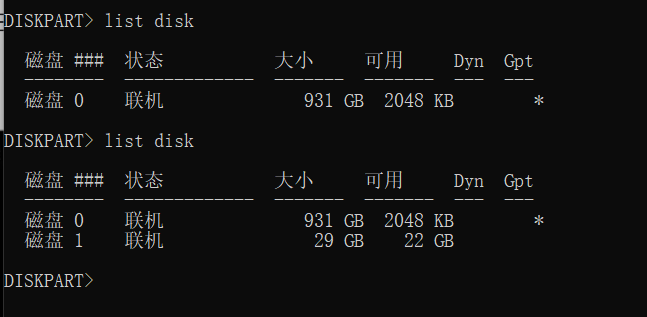
(3) Run LIST DISK command
Enter: LIST DISK, press enter, and all hard drives and USB drives on the computer will be listed, as shown in the following figure. Disk 0 is our system hard drive, and Disk 1 is a 32GB USB/SD card (please note that the actual capacity of the USB drive is generally slightly smaller than the nominal capacity, and the larger the capacity of the USB drive, the greater the difference). Generally, disk 0 is a local hard drive.
(4) Run select disk command
In this step, we need to select the disk that needs to be repaired. For example, if I wrote the sd card using Win32DiskImager, then disk 1 is the disk that needs to be repaired. Enter SELECT DISK 1 and press Enter to select the disk. (Select the disk number that needs to be repaired, note: do not choose it as the system hard drive)

(5) Run CLEAN command
Input: CLEAN, press enter to delete the entire disk data.
(6) Run CREATE PARTION PRIMRY command
Input: CREATE PARTION PRIMRY, press enter to create the primary disk partition.
(7) Run ACTION command
Input: ACTION, press Enter to activate the disk partition.
(8) Run FORMAT FS=FAT32 QUICK command
Input: FORMAT FS=FAT32 QUICK, press enter to quickly format the disk partition in FAT32 format.
At this point, the USB drive repair is complete and the capacity has been restored to its initial size.
(9) Formatting the sd card if need
Select your SD card drive and perform a quick formatting operation if need.